
Your Meta ad ROAS is only as good as your product feed. Most Shopify merchants never audit theirs.
The symptom is familiar: DPA campaigns running, impressions climbing, but CPP higher than it should be.
Or, worse, ads serving for products that are sold out, at prices that don’t match checkout, or with titles that read like internal inventory codes.
These are all feed problems.
They’re invisible in Ads Manager and they silently cap your DPA performance regardless of how well your campaigns are configured.
The product feed is the data layer between your Shopify store and Meta’s catalogue.
Get it right and your DPA become more relevant, more personalised, and more profitable. Get it wrong and you’re optimising on top of a broken foundation.
This guide covers the full feed system: what it is, how Shopify connects to Meta, the six fields that drive DPA performance, the most common errors and how to fix them, how to structure your catalogue for campaign control, and how sync frequency affects live ad quality.
⚡ MyAdForce syncs your Shopify catalogue to Meta in real time and errors are caught automatically, titles optimised, feed health maintained without manual work.
What Is a Shopify Product Feed?
A product feed is a structured data file that your Shopify store exports and Meta reads to build your advertising catalogue.
It contains one record per product (or per variant, depending on configuration), with standardised fields describing each item: title, price, image URL, availability, description, category, and a set of optional enrichment fields.

Meta reads this file to understand what you sell. It uses the data in two ways:
- To build the catalogue: Every product in your feed becomes an item in your Meta Commerce Manager catalogue. This is the inventory Meta draws from when serving DPA.
- To personalise ads: The field values like title, image, price are pulled dynamically into each DPA ad. A visitor who viewed your blue running shoes sees an ad populated with that product’s title, image, and current price. The feed is the source of that personalisation.
The quality of your feed directly determines the quality of your DPA.
Incomplete fields, wrong prices, outdated availability, and low-resolution images all degrade delivery, reduce personalisation accuracy, and can trigger ad disapprovals each of which costs you impressions and revenue.
💡 Feed vs catalogue: The ‘feed’ is the raw file Shopify exports. The ‘catalogue’ is what Meta builds from it inside Commerce Manager. The two terms are often used interchangeably. In this guide, ‘feed’ refers to the data source and ‘catalogue’ to what Meta holds.
How Shopify Connects to Meta: 3 Methods
There are three ways to get your Shopify product data into Meta’s catalogue.
Each transfers the same core fields but they differ significantly in what they optimise, how frequently they sync, and how much ongoing maintenance they require.
| Manual XML feed | Shopify native channel | MyAdForce | |
| Catalogue sync | Daily (default) | Daily (default) | Real-time |
| Data transferred | All standard Shopify fields | All standard Shopify fields | All fields + enriched titles, custom labels |
| CAPI included | No — separate setup | Yes — native integration | Yes — built-in |
| Feed optimisation | None — raw export | None — raw Shopify defaults | Automatic — titles, descriptions, images |
| Error detection | Manual — Commerce Manager | Basic — Commerce Manager | Automated alerts |
| Setup time | 30–90 min (developer) | 15–30 min | Under 10 min |
| Best for | Developers / agencies wanting full control | Getting started quickly | Shopify merchants at any scale |
Method 1: Manual XML feed
You export a product feed in Google Shopping XML format from Shopify (or via a feed app) and upload it manually to Commerce Manager.
This gives developers and agencies full control over field mapping, custom enrichment, and supplemental feed layering but it requires technical setup and manual monitoring.
The main drawback: manual feeds typically refresh every 24 hours.
Stock changes and price updates can take up to a day to appear in your live DPA.
For high-volume stores with fast-moving inventory, this lag creates real problems.
Method 2: Shopify native Meta channel
Installing the Facebook & Instagram sales channel in Shopify creates a direct connection between your store and Meta Commerce Manager.
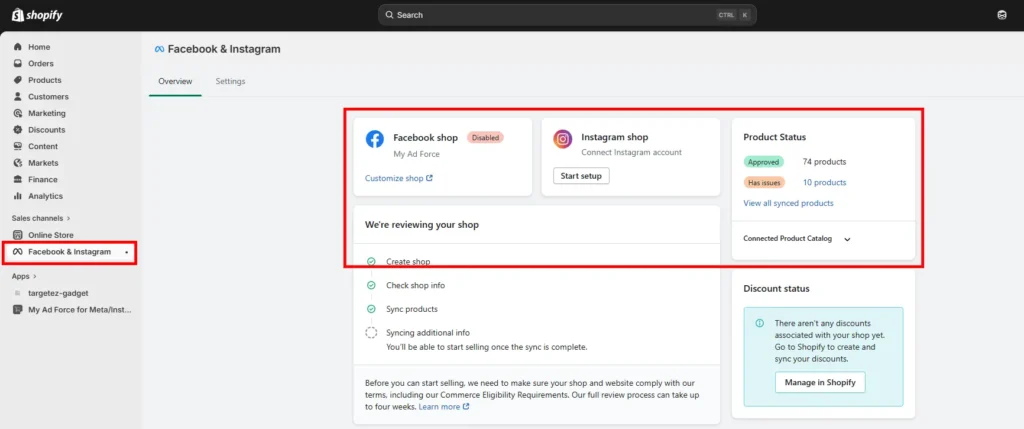
Setup takes 15–30 minutes and no technical knowledge is required. The catalogue syncs daily by default and includes all standard Shopify product fields.
The limitation: what comes through is your raw Shopify data (unoptimised titles, HTML-heavy descriptions, default images).
The native channel transfers your data but does nothing to improve it.
Most merchants who set this up assume the job is done; in reality, the data quality work is still entirely manual.
Method 3: MyAdForce
MyAdForce connects directly to your Shopify store, reads your product catalogue in real time, and syncs it to Meta with automatic enrichment: titles reformatted for ad readability, descriptions stripped of HTML and rewritten for ad context, custom labels applied for campaign segmentation, and errors flagged before they cause disapprovals.
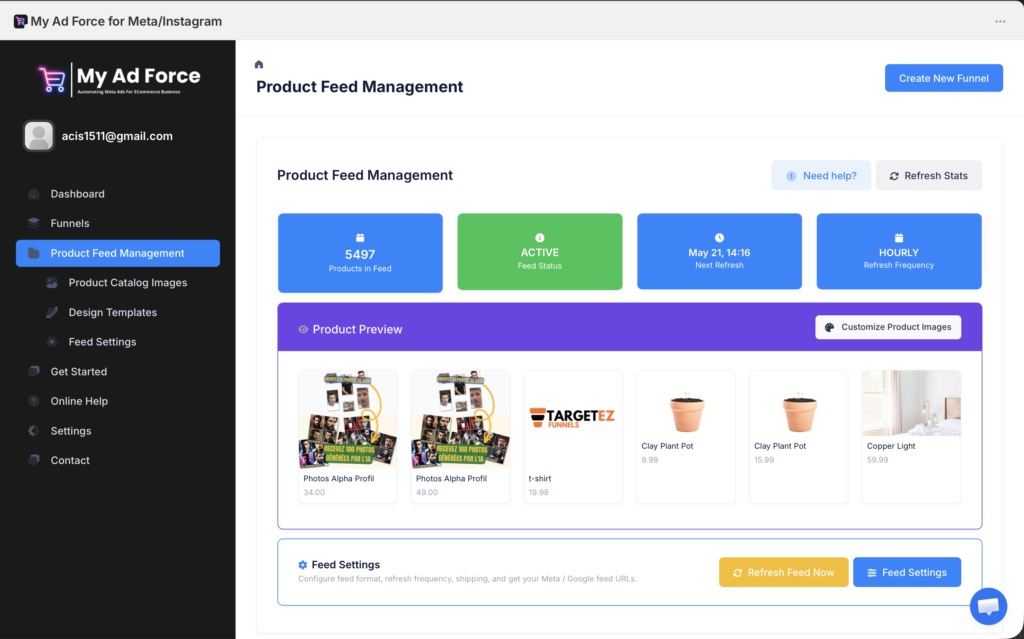
The practical difference: the native channel tells Meta what your products are called.
MyAdForce tells Meta what your products should say in an ad.
The 6 Fields That Drive DPA Performance
Meta’s catalogue accepts dozens of fields.
Six of them account for the majority of DPA performance impact either because they directly populate the ad creative, because errors in them cause disapprovals, or because they affect how Meta categorises and delivers your products.
For each field: what Shopify sends by default, what optimised looks like, and why it matters.
| Field | Default (Shopify) | Optimised | Why it matters for DPA |
| Title | Shopify product name as entered is often abbreviated, includes internal codes (e.g. “BLU-L-SLIM-V2”) | Brand + key attribute + product type in plain language (e.g. “Slim-Fit Oxford Shirt — Blue, Men’s”). Max 150 characters. This becomes your DPA headline. | Direct impact on DPA CTR as the title is the first text the viewer reads |
| Image | Main Shopify product photo is often white background, sometimes below recommended resolution | 1200×1200px minimum, square crop. Lifestyle image or white background both work but consistency across catalogue matters. No watermarks or promotional text in the image file itself. | The largest visual element of your DPA it determines stop-the-scroll power |
| Price | Shopify price field is usually correct, but rounding, currency, and tax format mismatches cause disapprovals | Must match your Shopify checkout price exactly, including tax treatment. Use sale_price field for discounted prices. Wrong price = ad disapproval. | Price mismatch is the #1 cause of catalogue disapprovals |
| Availability | Shopify stock status is synced every 24h by default, so ads can run for hours showing sold-out products | Real-time sync. Set to out_of_stock immediately when a variant sells out. Use preorder status for upcoming restocks. Never serve ads for products you can’t fulfil. | Sold-out DPA impressions waste budget and damage trust |
| Description | Shopify product description is usually HTML-heavy, SEO-oriented, not written for ad context | Plain text, 500 characters max for DPA context. Lead with the primary benefit, not specs. Strip all HTML tags. Write as if it’s ad copy, not a product listing. | Feeds the DPA body copy. heavily formatted descriptions render as broken text in ads |
| Product type / category | Left blank or using internal taxonomy (e.g. “Spring 2024 Drop”) | Use Google product category taxonomy for the meta category field. Use product_type for your own segmentation labels (e.g. “Tops > Shirts > Oxford”). Both fields improve delivery and targeting. | Meta uses this to categorise your products it affects who sees your DPA in prospecting campaigns |
The 6 Most Common Feed Errors (and How to Fix Them)
These errors account for the majority of catalogue problems in Commerce Manager.
Each one has a direct cost: either ad disapprovals (products stop serving), wasted impressions (ads run for unsellable items), or degraded delivery (Meta deprioritises your catalogue).
Find your errors in Commerce Manager → Catalogues → [your catalogue] → Diagnostics.
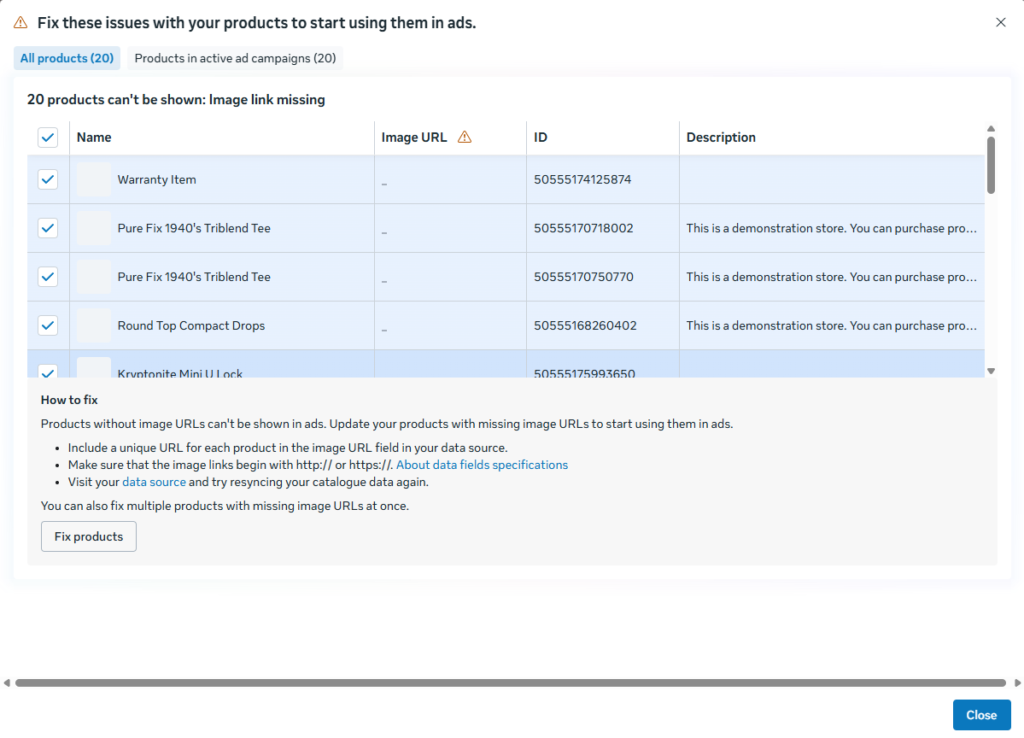
The panel shows each issue, the affected products, and the specific field causing the problem.
| Error | What causes it | How to fix it |
| Disapproved items | Meta rejects individual products due to policy violation, missing fields, or image issues | Commerce Manager → Diagnostics → Items. Filter by ‘Needs attention’. Fix the flagged field and re-submit. Most common causes: missing brand field, image with overlaid text > 20%, mismatched price. |
| Price mismatch | Catalogue price doesn’t match checkout price is most commonly caused by tax treatment differences or delayed sync | Ensure your feed sends the same price the customer sees at checkout. If you display prices excluding tax, ensure Meta receives the same. Set up real-time sync to eliminate lag. |
| Out-of-stock serving | DPA continues serving ads for products that sold out | Enable real-time catalogue sync. Set a rule in Commerce Manager to automatically pause items with availability = ‘out of stock’. Review Diagnostics weekly. |
| Missing GTIN/brand | Products without Global Trade Item Numbers or brand fields get lower delivery priority. Meta can’t match them confidently | Add GTIN (barcode) to all Shopify products where it exists. Add brand field to all items. If no GTIN exists, use MPN (Manufacturer Part Number) instead. |
| Image violations | Images flagged for: text overlaid on >20% of the image, watermarks, low resolution (under 500×500px), non-square crop for carousel | Re-export images meeting specs. Move promotional text to the ad copy layer, not the image file. Use the image_link field for primary images and additional_image_link for alternates. |
| Duplicate item IDs | Variants of the same product uploaded with conflicting IDs causes delivery fragmentation and reporting errors | Use Shopify’s variant ID (not the product ID) as your catalogue item ID. Each size/colour/material combination should have a unique, stable ID that doesn’t change between syncs. |
⚠️ The silent problem: Most feed errors don’t pause your entire campaign — they silently exclude affected products from DPA delivery. A catalogue with 200 products but 40 disapproved items is running DPA on 160 products. You won’t see an error message in Ads Manager. Check Commerce Manager Diagnostics weekly.
Catalogue Structure Best Practices
Your catalogue isn’t just a list of products it’s the targeting infrastructure for your DPA campaigns.
The way you organise it into product sets determines which products appear in which campaigns, at what budget, with what creative.
A well-structured catalogue gives you campaign control meanwhile a flat, unsegmented one forces you to treat all products identically.
Product sets: the building blocks of DPA targeting
A product set is a filtered subset of your catalogue / a group of products that share a characteristic.
You create product sets in Commerce Manager and then target them in individual DPA ad sets.
This is how you serve different creative and budget to bestsellers vs new arrivals, or high-margin products vs clearance items.
| Product set | How to define it | Which DPA campaigns to use it in |
| All products | The default set : all items in your catalogue | Broad DPA prospecting. Useful as a baseline but too wide for optimised segmentation. |
| Bestsellers | Custom label: products in top 20% of units sold (last 90 days) | Higher budget DPA campaigns. These products have proven demand try to serve them more aggressively. |
| High margin | Custom label: products with margin > your threshold | Prioritise in prospecting DPA as you can afford a higher CPP on high-margin items. |
| New arrivals | Custom label: added to catalogue in last 30 days | Separate campaign to build initial data on new products. Lower ROAS expected, treat as product testing budget. |
| On sale | Custom label: current_price < original_price | Retargeting DPA with urgency messaging. The discount is the creative : your copy only needs to highlight it. |
| Out of stock | Availability = out_of_stock | Exclude from all DPA campaigns. Use exclusion rules in Commerce Manager, not manual pausing. |
| Seasonal | Custom label: set manually before each seasonal event | Black Friday, Christmas, summer sales. Apply to the relevant product set and update your DPA creative overlay for the event. |
Custom labels: your segmentation tool
Shopify doesn’t have a native ‘custom label’ field but Meta’s catalogue supports five custom label fields (custom_label_0 through custom_label_4).
These are your most powerful segmentation tool.
How to use them:
- custom_label_0 / margin tier: “high” / “medium” / “low” based on your product margins. Lets you allocate more DPA budget to products you can afford to acquire customers on.
- custom_label_1 / performance tier: “bestseller” / “standard” / “new” based on sales velocity. Bestsellers deserve their own campaign with dedicated budget.
- custom_label_2 / seasonal flag: “black-friday” / “christmas” / “summer-sale” — applied manually before each event. Lets you swap DPA creative for the seasonal set without touching your evergreen campaigns.
- custom_label_3 / inventory status: “in-stock” / “low-stock” / “clearance” — useful for urgency messaging in retargeting DPA.
Custom labels must be set in your feed file or via a feed management tool but Shopify’s native channel doesn’t populate them.
MyAdForce can apply custom labels automatically based on your Shopify data.
Feed Sync Frequency: Why Real-Time Matters
Most Shopify merchants don’t think about sync frequency until something goes wrong: a customer clicks a DPA for a sold-out product, lands on a ‘Sorry, this item is unavailable’ page, and bounces.
That bounce cost you a click, annoyed a potential customer, and trained Meta’s algorithm that your landing page delivers a poor experience.
The default: Shopify’s native Meta channel refreshes your catalogue every 24 hours.
In that 24-hour window, a product can sell out, go on sale, or have its price corrected and your DPA will continue serving the stale version of that product until the next refresh.
What happens in a 24-hour sync lag
- Stock sells out at 9am: DPA continues serving that product until the next sync (up to 23 hours later). Every click goes to an out-of-stock page.
- Price drops for a flash sale at noon: DPA shows the pre-sale price for up to 12 hours. Customers who click expecting the sale price find the full price at checkout = high abandonment.
- Product discontinued in Shopify at 2pm: DPA continues to serve it. Customers who click land on a 404 or ‘product unavailable’ page.
- New product added at 4pm: DPA won’t include it until tomorrow’s sync. The product misses 24 hours of potential DPA exposure at the peak of its newness.
Real-time sync eliminates all four scenarios.
When a product sells out in Shopify, Meta’s catalogue is updated within minutes not hours.
The DPA stops serving that item before the next visitor clicks a dead link.
For stores with fast-moving inventory, frequent pricing changes, or seasonal flash sales, real-time sync is not optional it’s the difference between DPA that build trust and DPA that erode it.
Product Images for Catalogue Ads
The product image is the largest visual element of a DPA ad.
It determines whether someone stops scrolling before they read a single word of copy.
Yet most Shopify stores send DPA whatever image happens to be set as the main product photo in their Shopify admin — often a low-resolution white-background shot optimised for the Shopify storefront, not for an ad feed.
Technical specifications
| Spec | Requirement | Why it matters |
| Minimum size | 500 × 500 px | Below minimum = disapproval. You’ll lose impressions entirely for affected products. |
| Recommended size | 1200 × 1200 px | Higher resolution = better quality across all placements. Downsampled on mobile and never pixelated. |
| Aspect ratio | 1:1 (square) | Carousel DPA uses 1:1 by default. Non-square images are auto-cropped verify crops don’t cut the product. |
| File format | JPG or PNG | PNG for white backgrounds (no compression artefacts). JPG for lifestyle photos (smaller file size). |
| Text overlay limit | Under 20% of image area | More than 20% text = Meta disapproval. Move promotional text to the ad copy layer, not the image. |
| Additional images | Up to 10 per product | Use additional_image_link for alternate angles, lifestyle shots, or variant images. Meta can rotate these. |
White background vs lifestyle: which performs better?
The honest answer: it depends on the product category and the campaign objective.
- White background: Clean, consistent, product-forward.
- Works well for categories where the product itself is the message : jewellery, skincare, electronics accessories, homewares.
- Consistent across catalogue : important for carousel DPA where multiple products appear in the same ad.
- Lifestyle / in-context: Higher emotional resonance
- The customer sees the product as part of their life rather than as an item in a catalogue.
- Outperforms white background for fashion, fitness, home décor, food & beverage, and any category where the aspiration is part of the appeal.
- The hybrid approach: White background as main image (clean catalogue consistency), lifestyle as additional_image_link (Meta can use it for certain placements).
- Best of both for stores that can afford both asset types.
Overlays: the creative layer most merchants skip
Adding an overlay to your DPA product image (a price badge, a discount percentage, a trust signal like ‘Free shipping’, or a seasonal banner) gives your ad visual contrast in a feed full of plain white-background images.
The overlay communicates the offer before the viewer reads any copy.
Three overlay types that consistently improve DPA CTR:
- Price badge: Shows the current price or discount directly on the product image.
- Effective for price-competitive categories and retargeting campaigns where the offer is the remaining barrier.
- Promotional banner: “Sale -30%”, “Black Friday”, “Free Delivery” like a banner across the top or bottom of the image.
- Works especially well during seasonal peaks when standing out in a crowded feed matters most.
- Trust badge: “4.9★”, “Money-back guarantee”, “As seen in [publication]” reduces purchase friction at the creative level for cold-traffic prospecting DPA.
The operational challenge: applying overlays to a 200-product catalogue manually takes hours.
Reverting them after a promotion takes more hours.
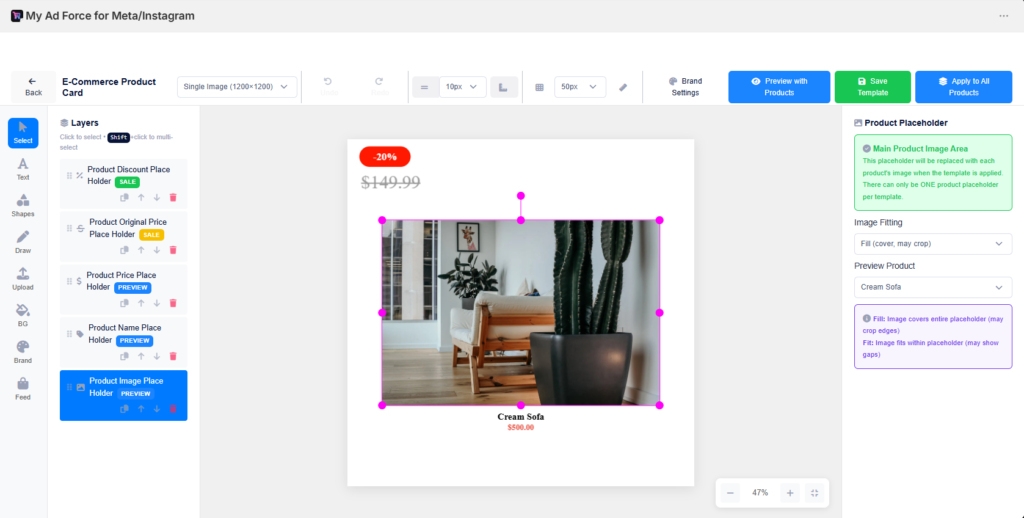
This is precisely the problem the MyAdForce DPA image template designer solves : design the overlay once, apply it to your full catalogue in one click, and revert just as easily when the campaign ends.
⚡ MyAdForce keeps your Shopify catalogue in real-time sync with Meta, catches feed errors automatically, and applies image overlays to your full product feed in one click.
Your Feed Is the Foundation : Audit It Before You Scale
Every other element of your Meta ads account like campaign structure, audience targeting, creative strategy, budget allocation sits on top of your product feed.
A weak feed caps performance at every layer above it.
The merchants who see the strongest DPA ROAS are not always those with the biggest budgets or the most sophisticated campaign structures.
They’re the ones whose catalogue data is clean, complete, and current ; whose titles read like ad copy rather than inventory codes, whose images meet spec, whose prices sync in real time, and whose Commerce Manager Diagnostics panel shows zero errors.
Run the feed audit checklist below before any DPA campaign launch, and schedule a monthly review to catch errors before they compound.
The full feed ecosystem connects to:
⚡ Install MyAdForce free — real-time Shopify catalogue sync, automatic error detection, and feed optimisation without touching a spreadsheet or XML file.
Feed Audit Checklist
Use this checklist before launching DPA and monthly as a maintenance check.
Run this audit before launching DPA campaigns and monthly thereafter.
🔌 Connection and sync
- ☐ Shopify catalogue connected to Meta Commerce Manager (Sales Channels → Facebook & Instagram)
- ☐ Catalogue sync confirmed in Commerce Manager — last sync within expected window
- ☐ Real-time sync active (or sync frequency matches your stock update cadence)
- ☐ Domain verification complete in Meta Business Manager
📋 Field completeness
- ☐ All products have a descriptive title (no internal codes or SKU strings)
- ☐ Description field is plain text — no HTML tags or broken formatting
- ☐ Brand field populated for all items
- ☐ Google product category assigned to all products (not just ‘other’)
- ☐ GTIN or MPN populated for all products where applicable
- ☐ Custom labels set for segmentation: bestsellers, margin tier, new arrivals, seasonal
💰 Price and availability
- ☐ Prices in catalogue match Shopify checkout prices exactly
- ☐ Sale prices use the sale_price field (not just a lowered regular price)
- ☐ Availability field is accurate: in_stock, out_of_stock, or preorder
- ☐ Out-of-stock products are excluded from active DPA campaigns
- ☐ No products showing ‘preorder’ that are actually unavailable
🖼️ Images ☐
- ☐ All product images are at least 500×500px (1200×1200px recommended)
- ☐ No images with text covering more than 20% of the image area
- ☐ No watermarks or overlay promotional banners in the base image file
- ☐ Images are square (1:1 ratio) — non-square images verified for auto-crop
- ☐ Additional_image_link populated for alternate angles where available
🔍 Commerce Manager diagnostics
- ☐ Commerce Manager → Catalogues → Diagnostics reviewed
- ☐ Zero items in ‘Needs attention’ status
- ☐ Disapproved items list is empty (or all items under active review)
- ☐ Catalogue coverage metric reviewed: 80%+ of active products receiving impressions
- ☐ No ‘price mismatch’ warnings in the diagnostics panel
Leave a Reply